⌚ Apple Watch Padel Scorekeeper & Workout Guide
Section titled “⌚ Apple Watch Padel Scorekeeper & Workout Guide”VMSPadel turns Apple Watch into an in-game padel scorekeeper and workout tracker. Update points from your wrist, keep the server and court side clear, track heart rate and calories, and save the match to Apple Health, Apple Fitness, and your VMSPadel history.
This guide walks through every Watch screen and setting. If you only need the basics, start with the Quick Start guide.
⌚ Main Screen
Section titled “⌚ Main Screen”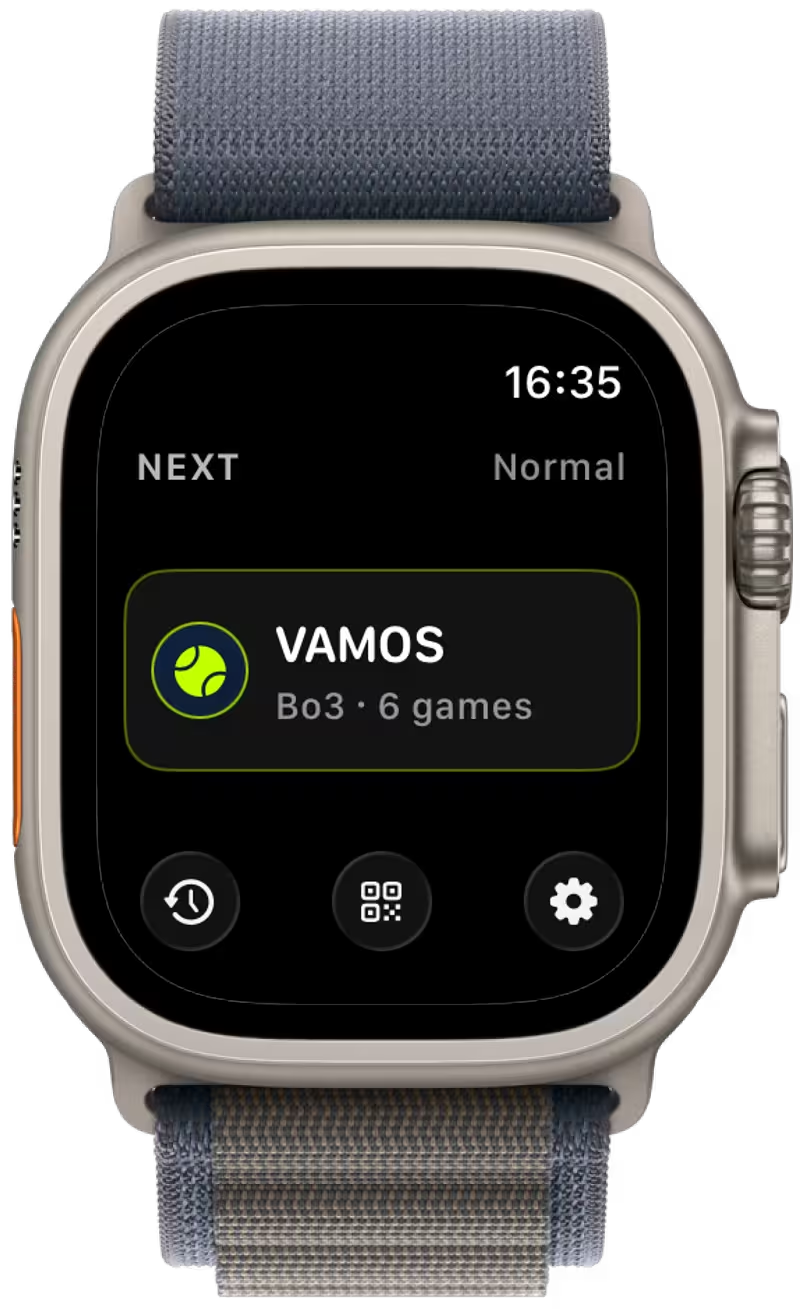
From the Home Screen, you can:
- VAMOS - start a new match
- History — view previous matches
- QR Code — share the app with friends
- Settings — configure match mode and preferences
The VAMOS card previews the selected mode and format: best-of sets and games, the Quick points target, or time-only Training. The layout adapts to the Watch size and larger system text settings. To change the interface language, use Language in the iPhone app; the choice syncs to your Watch.
🎮 Starting a Match
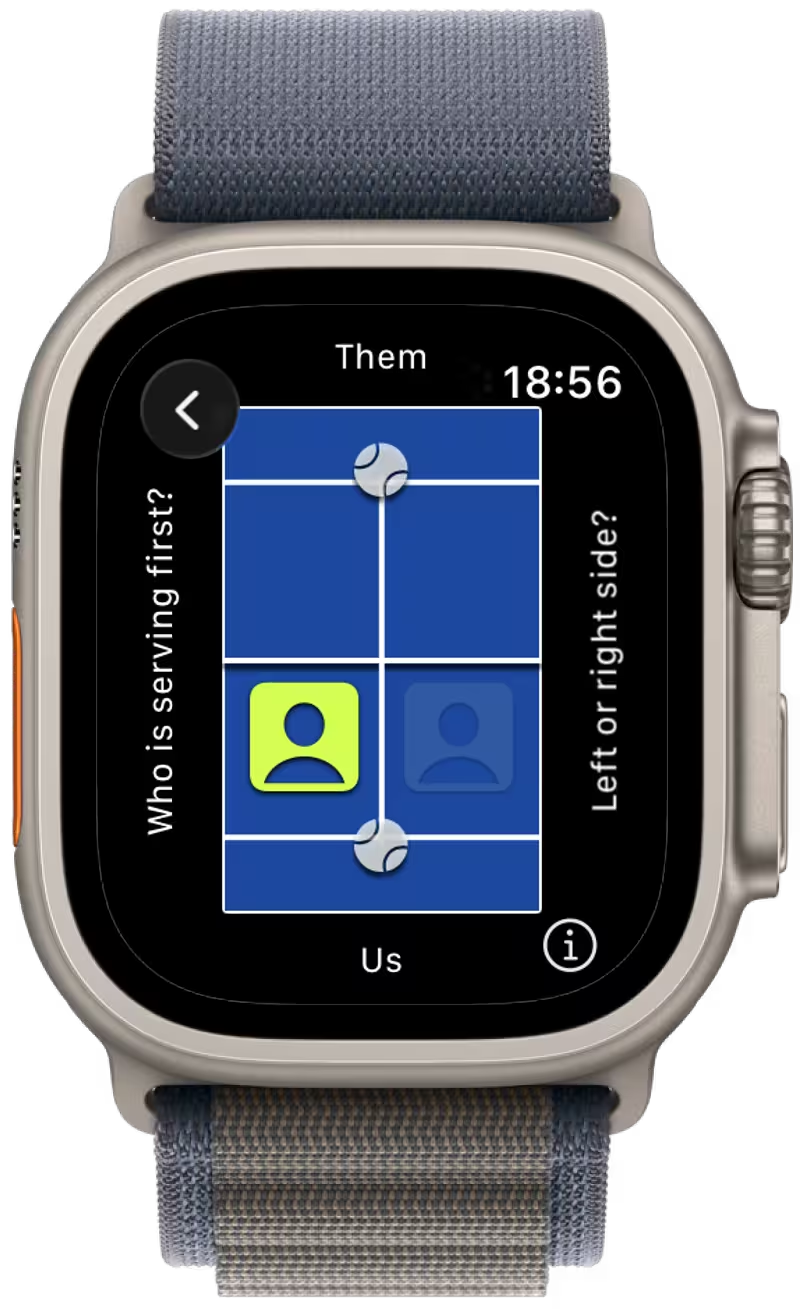
Section titled “🎮 Starting a Match”When starting a Normal or Quick match, you’ll be asked to choose:
🎾 Serving Side
Section titled “🎾 Serving Side”- Tap the ball icon to select who serves first — you or your opponents.
- Your team is always on the bottom side of the screen.
🧍 Court Side
Section titled “🧍 Court Side”- Tap the person icon to choose which side of the court you’re playing on — left or right.
Once selected, you’re ready to begin!
⏱ Match View
Section titled “⏱ Match View”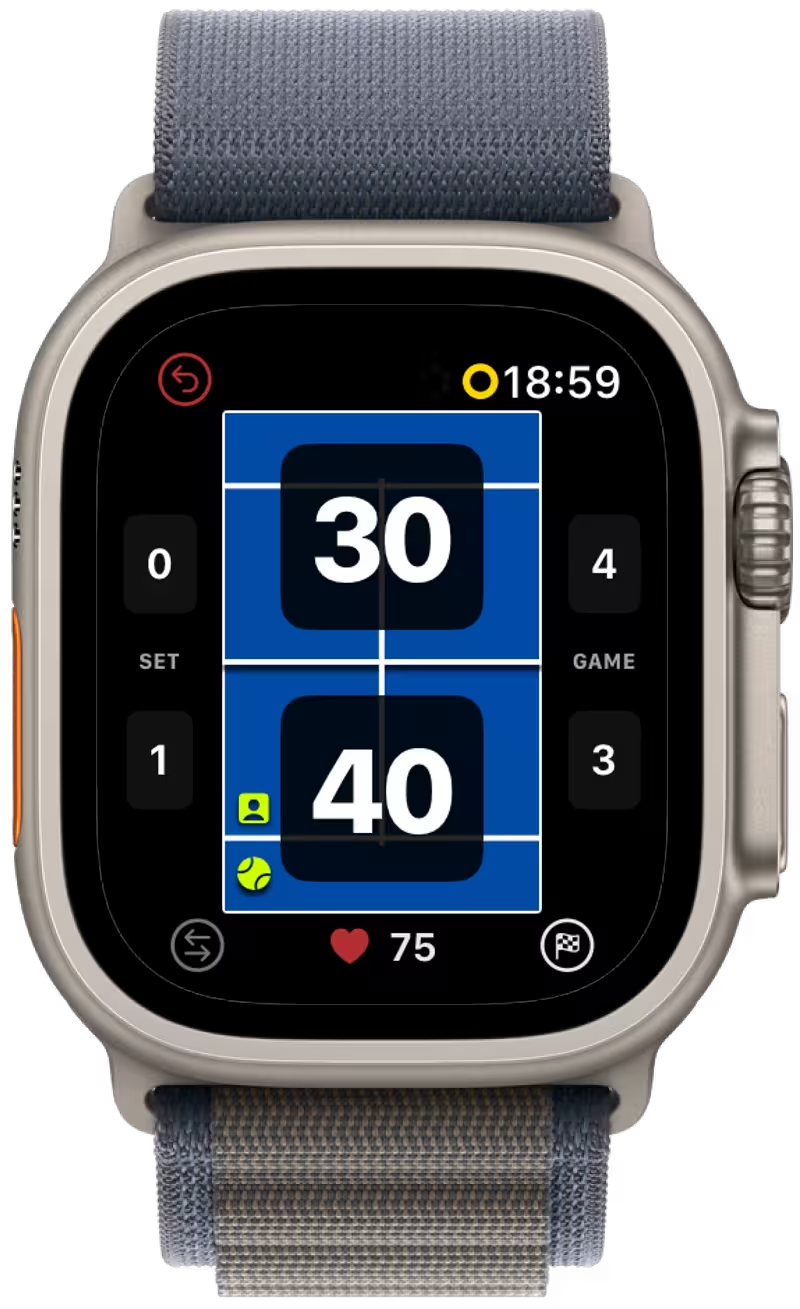
The Match View is your live match controller and scoreboard.
Control:
- Score — tap on your or your opponent’s score to increase it
- Undo — revert the last action
- Change Serve — rotate who’s serving first on the team: left or right player
- Activity — review activity stats, such as heart rate, calories burned, and match duration
- Finish — end the match at any time
Observe:
- Serving Player — who’s currently serving
- Serving Position — from which side to serve (left/right)
- Important Point Indicator — highlights when the next point can decide a break, set, or match
🚨 Important Point Indicator
Section titled “🚨 Important Point Indicator”When a point becomes especially important, the score button gets a red highlight with a small chip:
BP= Break PointSP= Set PointMP= Match Point
This helps you instantly see when the next rally could change the momentum or even finish the set or match.
In normal matches, the indicator can highlight key situations like break point, set point, and match point before the score changes.
❤️ Match Activity
Section titled “❤️ Match Activity”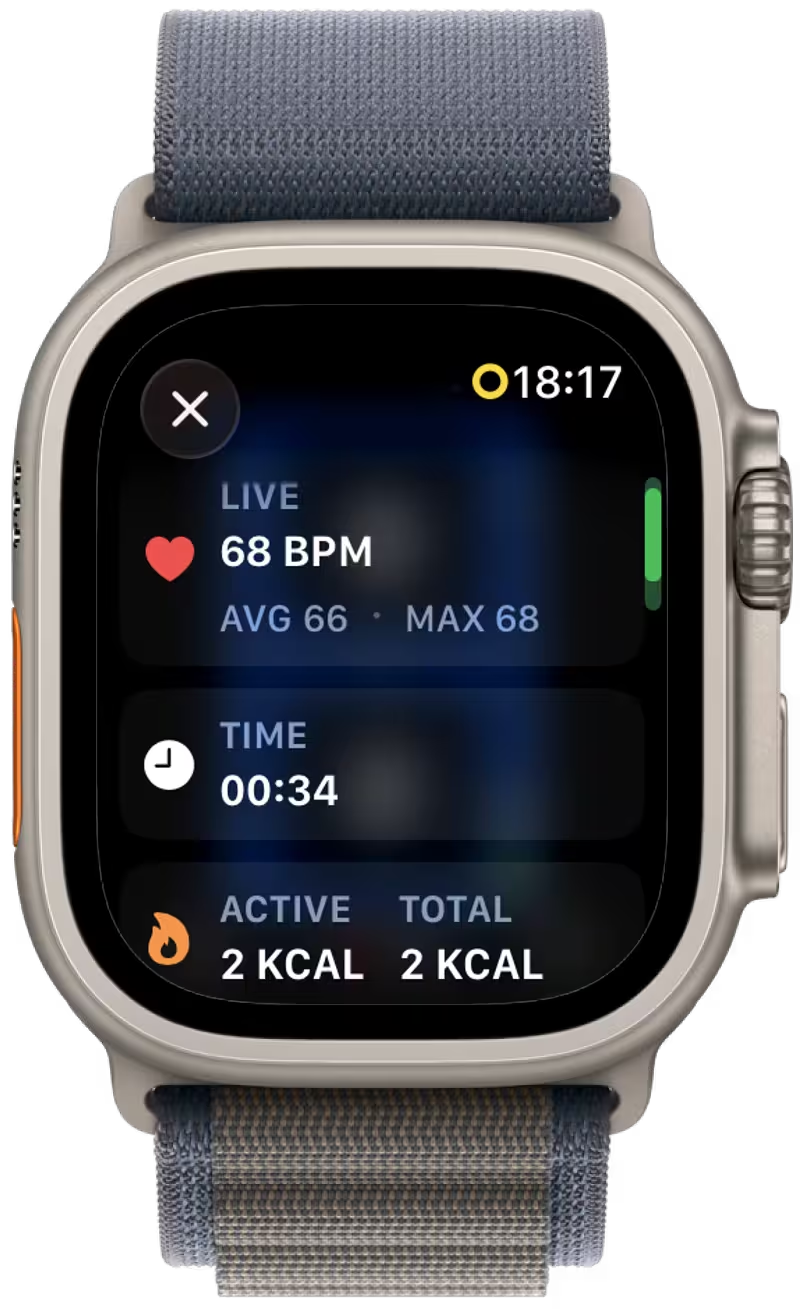
With Track Activity enabled, scroll through:
- Heart rate: current (LIVE), average (AVG), and maximum (MAX) in BPM.
- Time: elapsed workout time.
- Calories: ACTIVE calories and, when resting energy is available, TOTAL calories (active plus resting energy).
Steps and distance are not shown in this activity screen.
🏁 Match Result
Section titled “🏁 Match Result”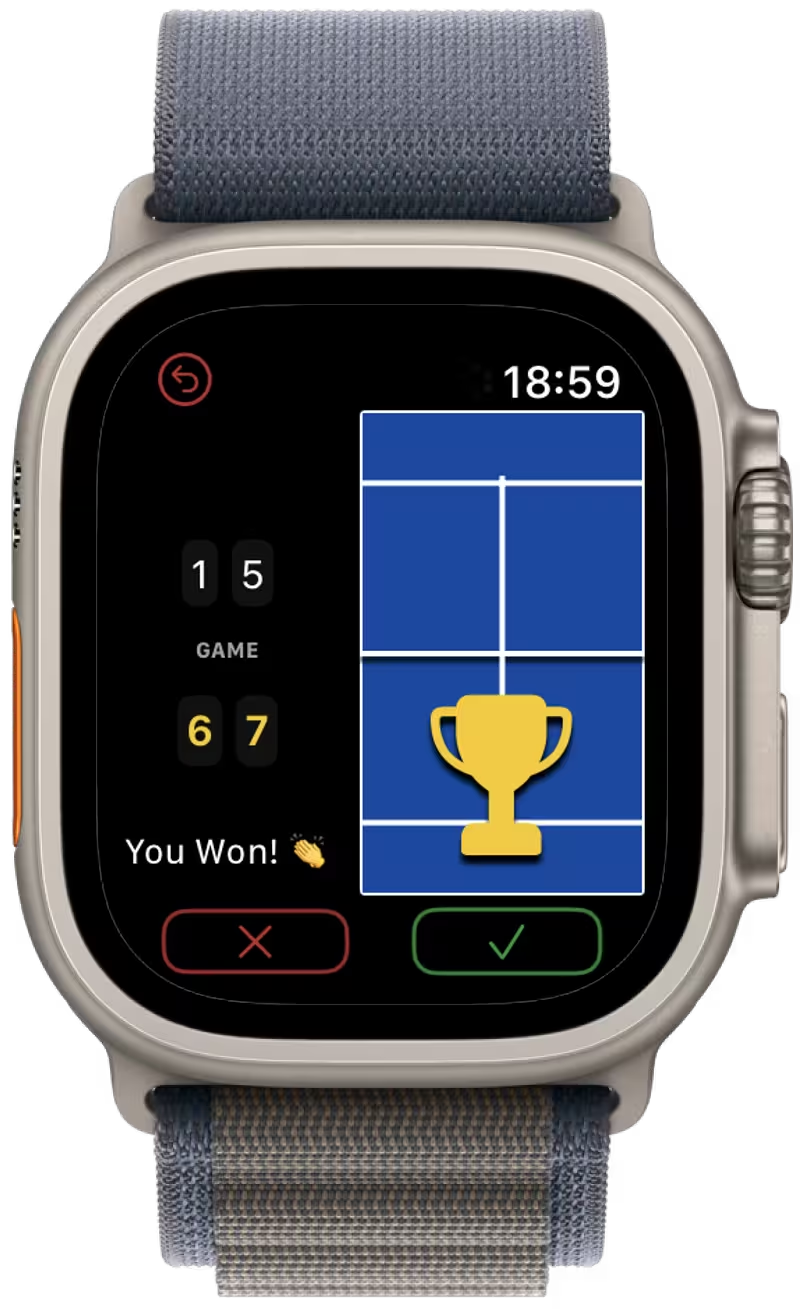
When a match ends, you’ll see a final summary.
- Undo — return to match view
- Delete — do not save this match
- Save — save this match to analyze later
Matches are saved to your history and synced with the iPhone App.
⏸ Interrupted Matches
Section titled “⏸ Interrupted Matches”If a Normal or Quick match with recorded points has no scoring activity for 30 minutes, the Watch asks whether to Resume Match or Finish at Last Point when it checks the active session. Undo and serve changes also count as activity.
Finish at Last Point saves an undecided result ending at the last scored point, so idle time is excluded. After 3 hours of inactivity, the app automatically does this at its next check; a match with no recorded points is discarded. These checks run while the app is active or when you return to it.
🗓 History
Section titled “🗓 History”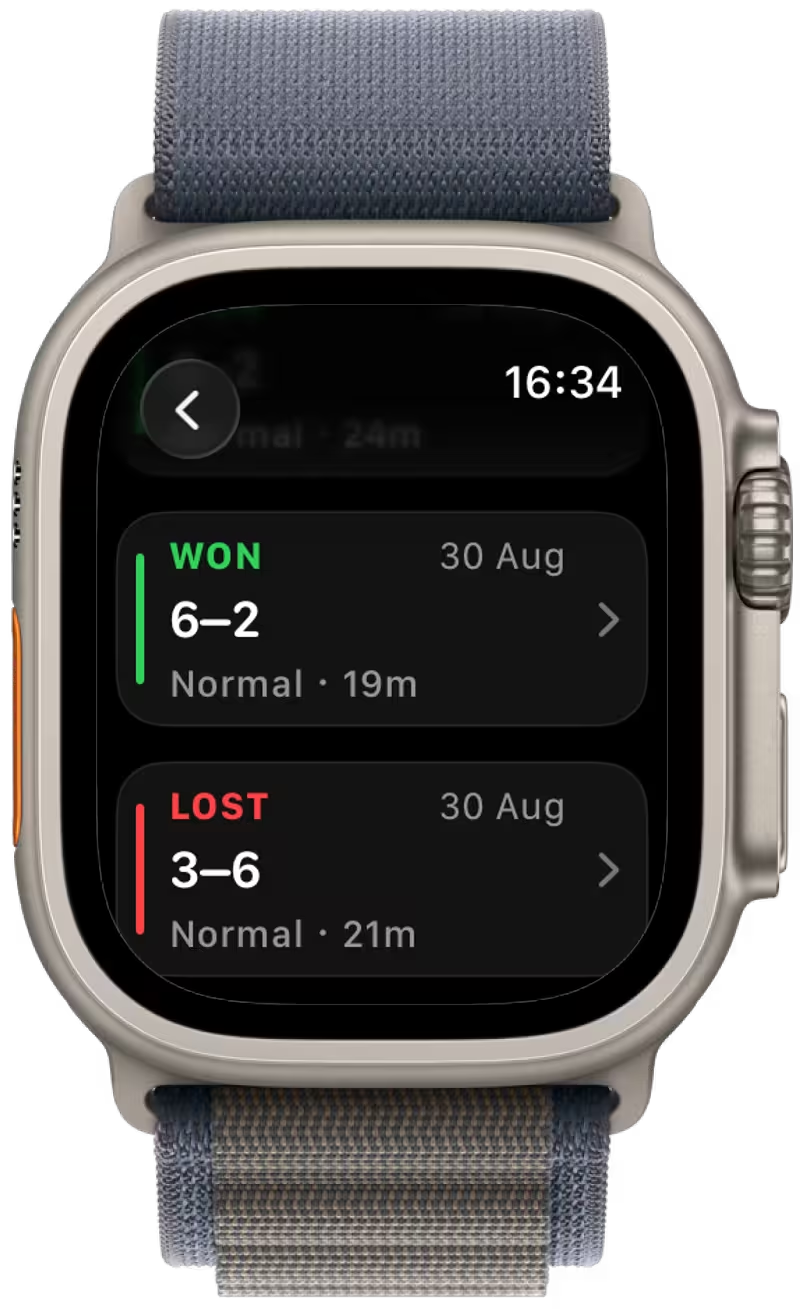
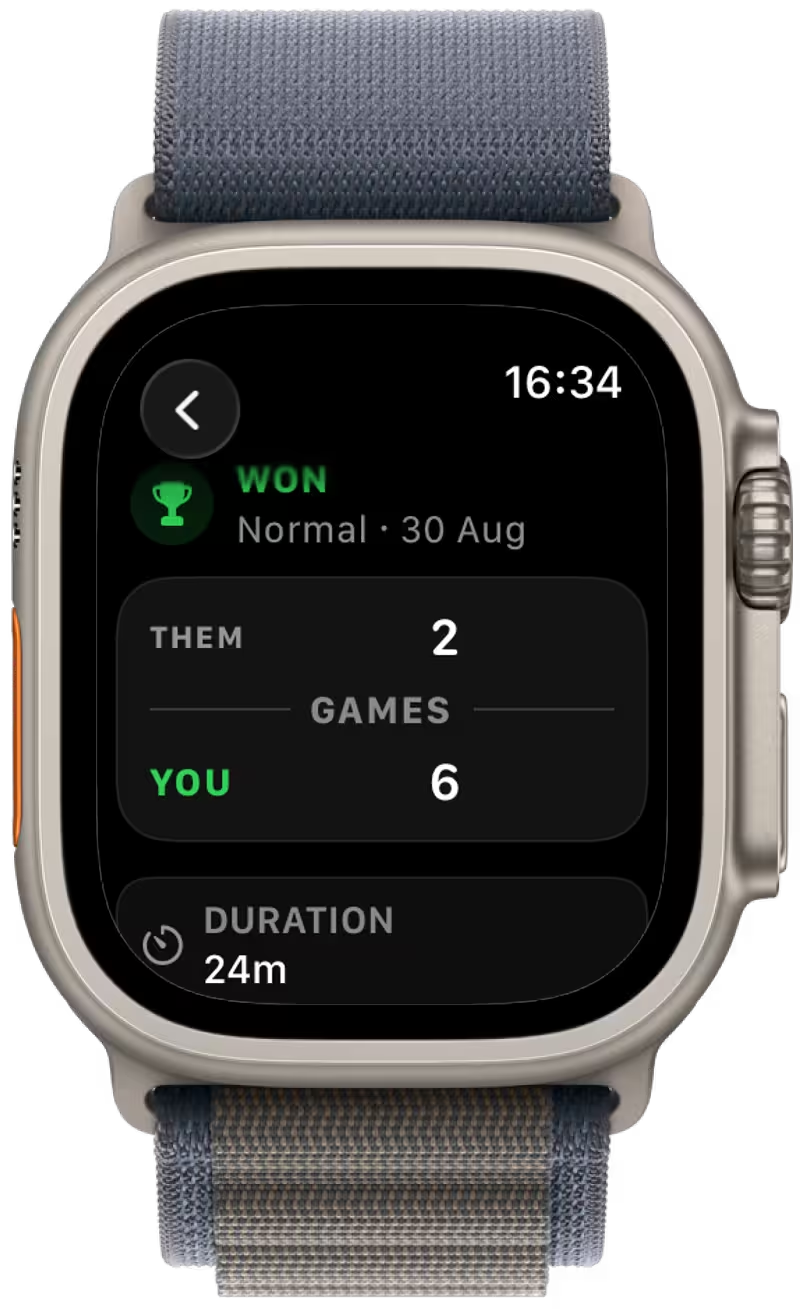
Track a few of your recent matches directly on your watch.
Tap any match to view details like:
- Type of match
- Score and result
- Duration and date
Training entries show time on court without a score or winner. Swipe left on an entry and confirm Delete Match to remove it from VMSPadel on both Watch and iPhone and from synced history. Offline deletions are queued until synchronization; deletion cannot be undone.
📤 Share App
Section titled “📤 Share App”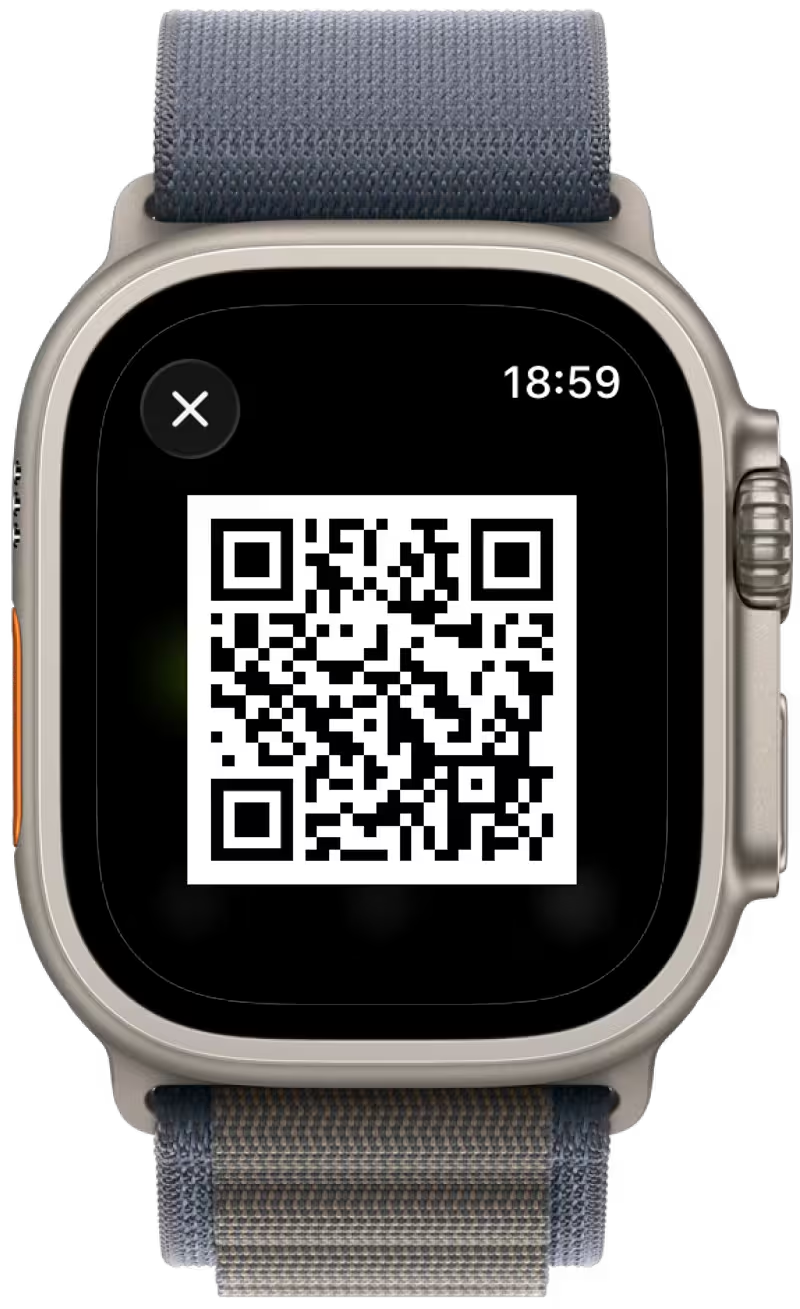
Share VMSPadel with friends using the QR Code feature.
⚙️ Settings
Section titled “⚙️ Settings”Choose the match mode you want to configure:
-
Normal Match Traditional 15/30/40 scoring with configurable sets, deuce rules, tie-breaks, and deciding sets.
-
Quick Match Faster point-based scoring with configurable targets and serve rotation.
-
Training Record time on court without points or sets, with optional activity tracking.
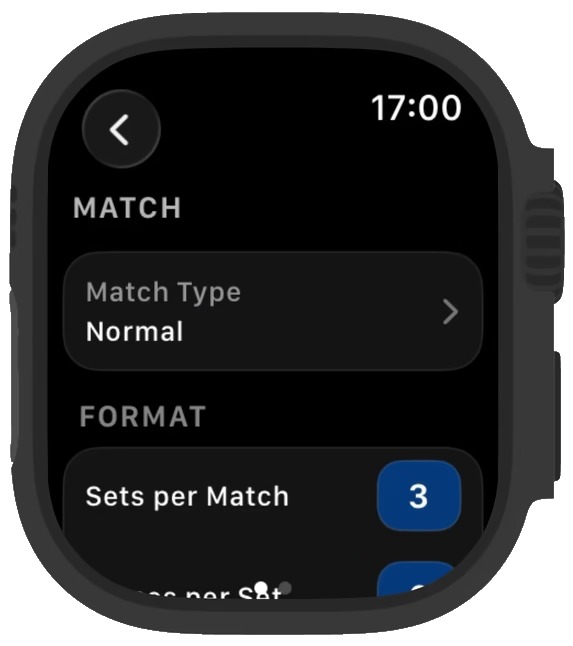
Tap Match Type to switch modes. The settings below it change for the selected mode; Training keeps the on-court options without scoring rules. Swipe left to the second Settings page for app status.
Normal Match
Section titled “Normal Match”🏟 Sets & Games
Section titled “🏟 Sets & Games”Configure the length of the match.
- Sets per Match — Best-of format: 1, 3, 5, or 7 sets. For example, best of 3 means the first team to win 2 sets wins.
- Games per Set — Number of games required to win a set.
⚖️ Deuce Rules
Section titled “⚖️ Deuce Rules”Open Point Rule to choose how games tied at 40–40 are resolved.
-
Deuce Traditional rule — win by 2 points after 40–40, no limit on extra points.
-
Golden Point At 40–40, the next point wins immediately — no advantage play. The receiving team can choose where to serve.
-
Silver Point At 40–40, one regular deuce round is played. If it’s deuce again - the next point wins immediately. The receiving team can choose where to serve.
-
Star Point At 40–40, two regular deuce rounds are played. If it’s deuce again - the next point wins immediately. The receiving team can choose where to serve.
⏱ Tie-Break Format
Section titled “⏱ Tie-Break Format”Open Set Ending to choose how tie-breaks are triggered.
-
Tie Break Standard tie-break at 6–6 (or equivalent based on Games per Set).
-
Davis Cup Shorter format — tie-break at 3–3 if Games per Set is set to 4.
🏆 Deciding Set
Section titled “🏆 Deciding Set”Open Match Decider to set the format for the final set.
-
Deciding Set Play a standard set for the final set.
-
Super Tie Break Tie-break to 10 points, win by 2.
Quick Match
Section titled “Quick Match”🔢 Points
Section titled “🔢 Points”Set the target score when playing in Quick mode.
- Tap the Points field to select the match’s winning target.
- The chosen value is used together with your Win Condition setting (see below) to determine when the match ends.
📊 Scoring Type
Section titled “📊 Scoring Type”Open Win Condition to decide how the target Points are counted.
-
Total Score The game ends when the combined score of both teams reaches the target Points value.
-
Per Team The game ends as soon as either team reaches the target Points value.
🎾 Serve Rules
Section titled “🎾 Serve Rules”Open Serve Rule to decide how the serve alternates between teams.
-
Tie Break Rules (default) Classic tie-break style serving — the first point is served by one team, and then the serve alternates every 2 points between teams.
-
Every N Points Custom serving pattern — choose how many points are played before the serve switches. Use Serve Change to set the interval from 1 to 9 points.
Training
Section titled “Training”Choose Training as the match type to record a practice session without keeping score. Start from the main screen to open the timer; no side or server selection is needed.
Enable Track Activity before starting to also record heart rate and calories. With activity tracking off, the session still records your time on court.
Tap Finish and confirm to save the session to your history. Training has no points, sets, winner, or live iPhone scoreboard.
Choose Keep Training in the confirmation dialog to continue the timer. Saved training appears on both devices and contributes to time on court without affecting competitive match stats.
An unfinished training session resumes when you return to the app. At its next session check after 3 hours, the app automatically saves it with a duration capped at 3 hours; the 30-minute scoring reminder does not apply.
🔔 Side Change Alert
Section titled “🔔 Side Change Alert”Get a reminder when it’s time to switch sides during a match.
The app can alert you automatically based on standard padel rules.
- In Normal Matches, the alert appears every odd game (1st, 3rd, 5th, etc.).\
- In Quick Matches, the alert appears every 6 points.
❤️ Track Activity
Section titled “❤️ Track Activity”Enable this option to let VMSPadel track your match performance using Apple Watch sensors.
-
Turn it on
Toggle Activity Tracking on or off in the Settings screen. -
Apple Watch sensors
Match time, heart rate, and calories are captured in real-time. -
In-app stats
View your activity during the match in the Activity screen. -
Apple Health & Fitness
Matches are also saved as workouts to the Apple Health and Apple Fitness apps.
🔧 App Info & Status
Section titled “🔧 App Info & Status”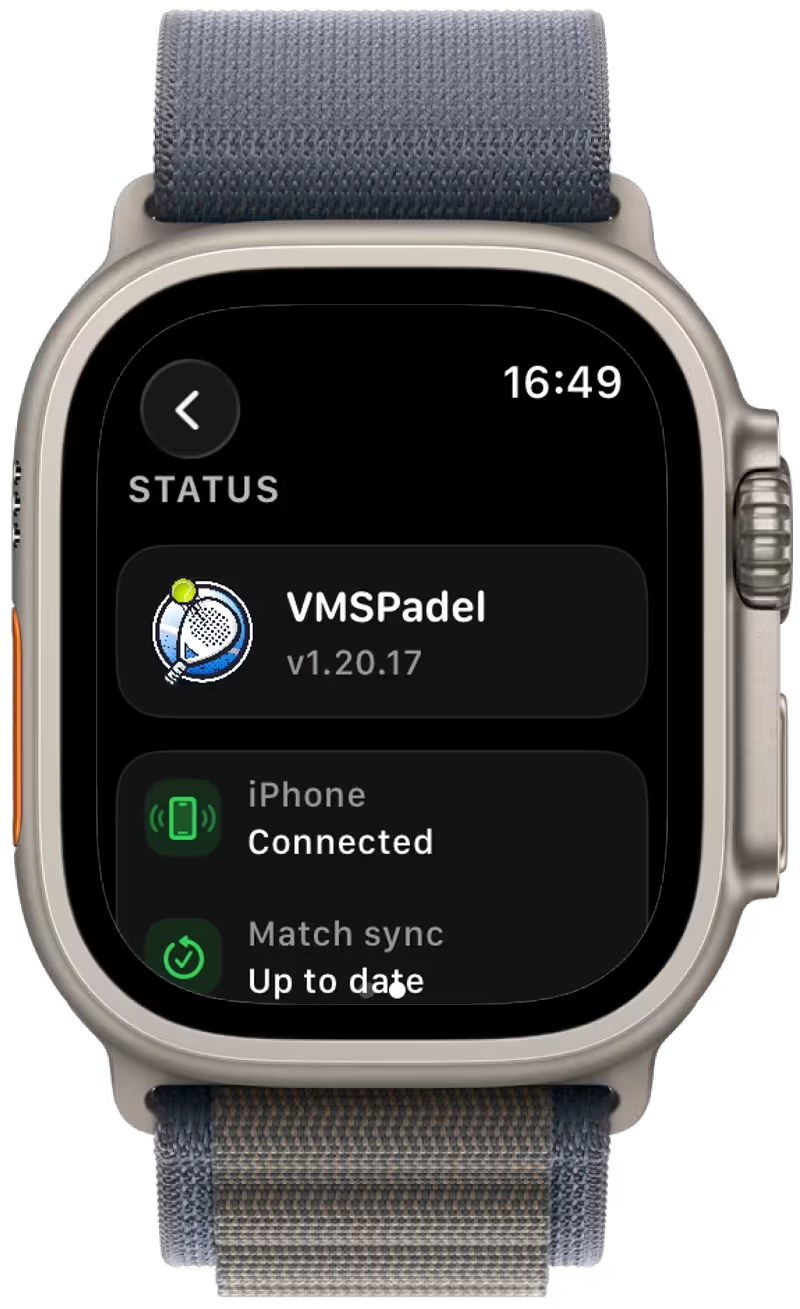
Swipe left from the match settings to the second Status page to view:
-
iPhone Connectivity
connected
not connected -
Sync Status
matches are synced to the iPhone
waiting to sync -
Subscription Status
active
trial
expired
Also shows the current app version — helpful for support or troubleshooting.
The status rows include text labels for connectivity, the current plan, and sync progress (Up to date or a synced/total count).
👀 Related Guides
Section titled “👀 Related Guides”- New to the app? Start with the Quick Start guide
- Need deeper insights and stats? Use the iPhone App Guide
- Comparing scoring formats? Read Padel Scoring Explained
- Have questions? Check the FAQ
📬 Need Help?
Section titled “📬 Need Help?”If something is still unclear or you need assistance, please reach out to us at [email protected].