📱 iPhone Padel Scoreboard & Match Stats Guide
Section titled “📱 iPhone Padel Scoreboard & Match Stats Guide”Use the VMSPadel iPhone app as a live court-side scoreboard while scoring from Apple Watch. After the match, review history, notes, trends, and detailed serve, return, pressure, and break-point stats.
This guide explains every iPhone screen with screenshots and practical examples.
🏠 Home Screen
Section titled “🏠 Home Screen”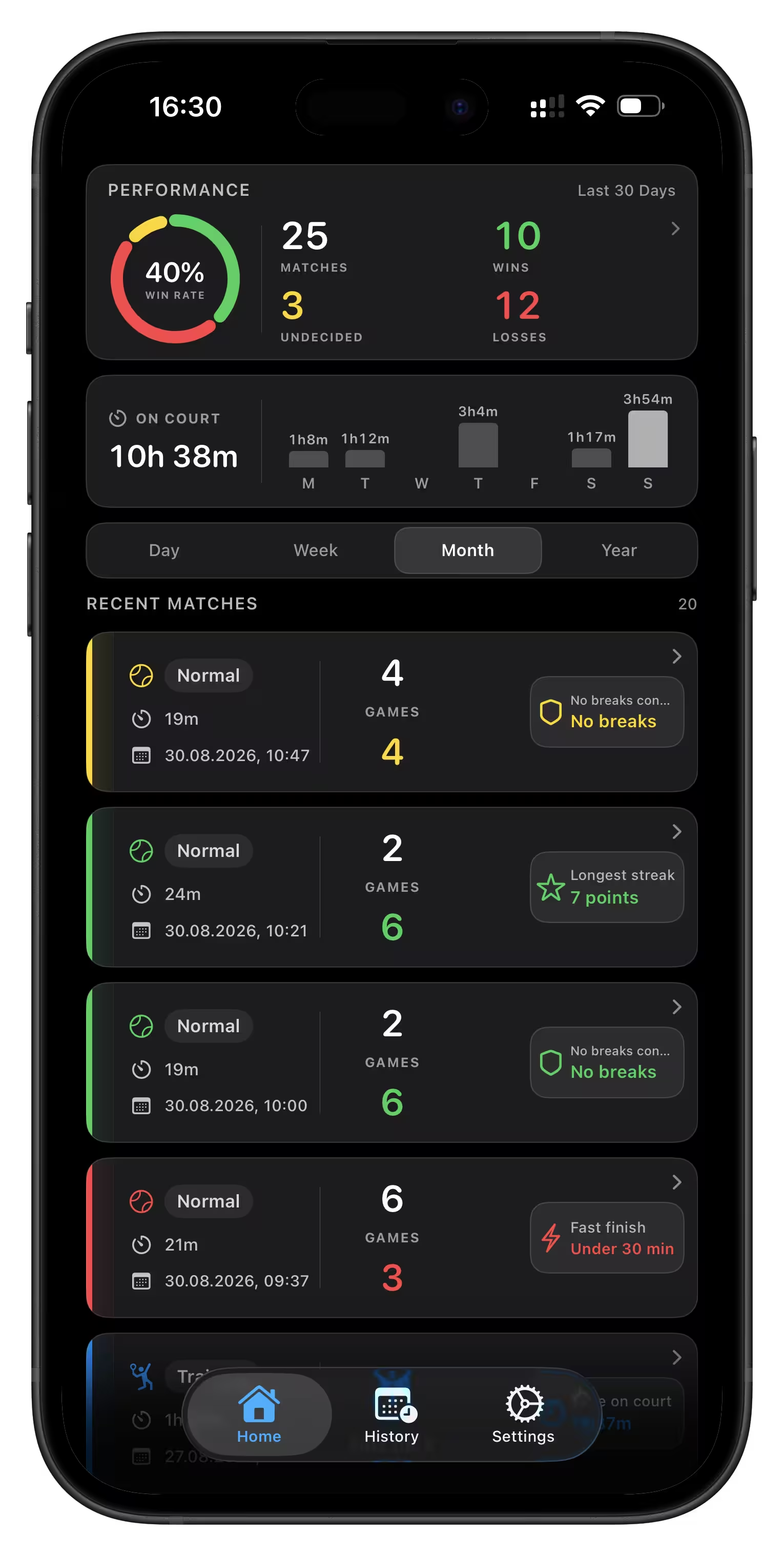
The Home Screen gives you a clear overview of your match stats and latest activity.
🔁 Overview Period
Section titled “🔁 Overview Period”Use the tabs Day, Week, Month, or Year to change the time period for all stats and graphs shown on the screen.
📊 Quick Stats
Section titled “📊 Quick Stats”-
Results
A colorful circle shows your win/loss ratio:
🟩 Green = Win
🟥 Red = Loss
🟨 Yellow = Draw or Undecided -
Matches Played
Total number of matches recorded in the selected period. -
Time on Court
Combined time on court, including training sessions. -
Time on Court Graph
A bar chart showing your time on court across the days of the week. Great for spotting when you’ve been most active.
🔎 Period Details
Section titled “🔎 Period Details”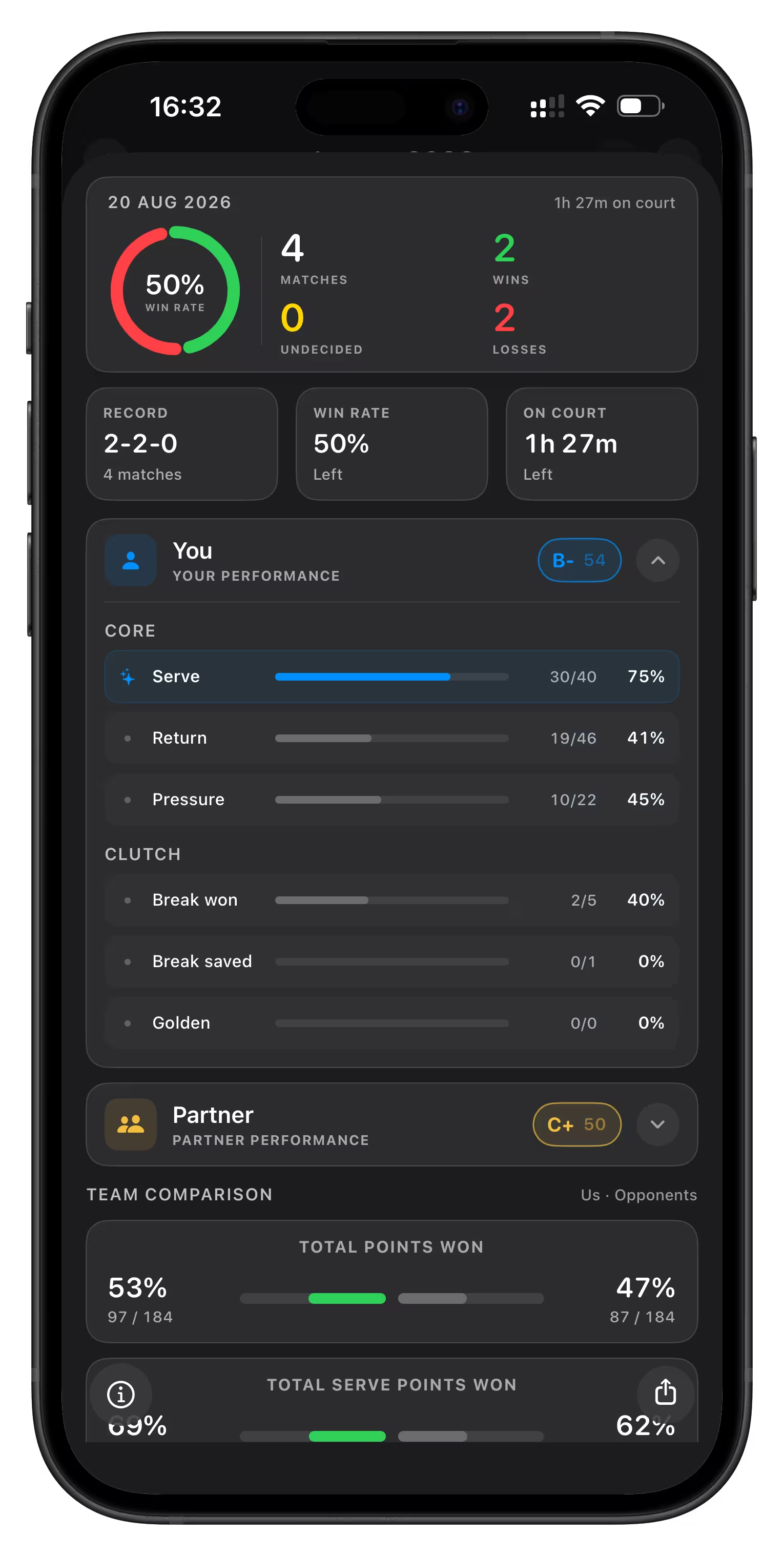
The overview summary card is now clickable.
- Tap the summary card on the Home Screen to open detailed analytics for the currently selected period.
- The period matches your selected tab:
Day,Week,Month, orYear. - The details screen shows the real date range used for that report.
- Inside period details, you can switch between Total, Left, and Right views to compare your performance by court side.
- You’ll also see quick stats, player rank details, and the same advanced analytics used in match details, but aggregated for the whole period.
- You can also use the share button to export a clean report image for the selected period.
🕹️ Recent Matches
Section titled “🕹️ Recent Matches”A list of your latest games, each showing:
-
Match type:
Quick,Normal, orTraining- Quick = short tie-break style, counting by 1 point
- Normal = traditional tennis scoring (15, 30, 40)
- Training = time on court without scoring
-
Duration: How long the match lasted.
-
Score: Your score vs your opponent’s.
-
Date & Time: When the match took place.
Tap a match to view more details.
Cards can also show a match highlight, such as your longest point streak, a comeback, or break points converted, when one is available.
Training sessions appear with their duration instead of a competitive score. Open one to see its date and time on court. Training contributes to time on court, but has no winner, player ratings, point statistics, or shareable match report.
📈 Match Details
Section titled “📈 Match Details”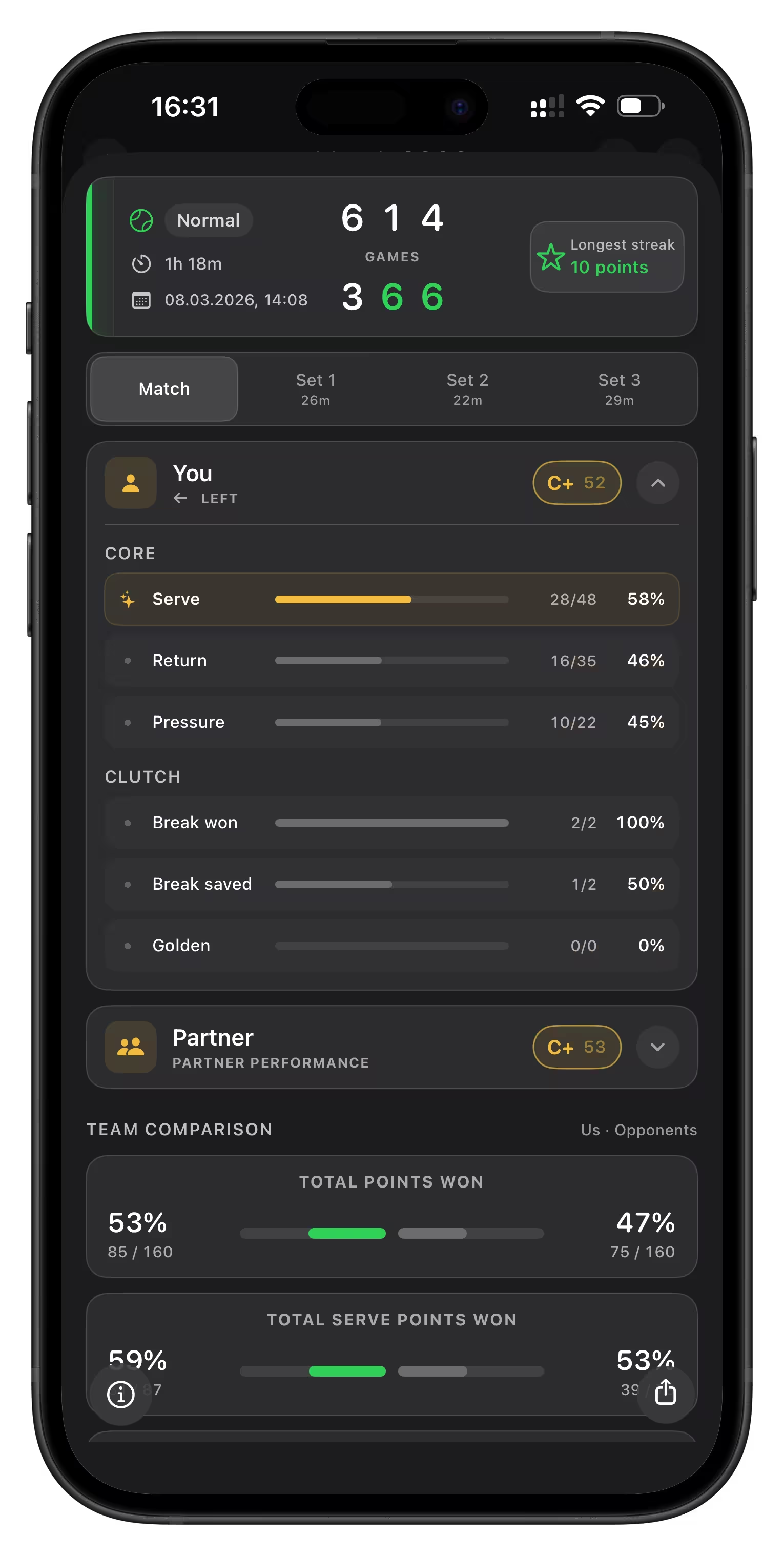
Tap any match in your History View or from the Home Screen to open a detailed view of that match.
For Normal and Quick matches, this screen gives you a breakdown of how the match went, including player performance and how points were won. Training opens a time-on-court summary instead.
- If the match has multiple sets, you can switch between Match and individual Set tabs. Each set tab also shows that set’s duration.
- Use the info button at the bottom-left to jump back to this guide whenever you want help understanding the screen.
- You can use the share button to export the currently visible report.
- The match card stays at the top so you can always see the final score, date, and duration while browsing the stats below.
- At the bottom of the screen, you can save a short match note for reminders, tactics, or takeaways.
🅰️ Performance Rating
Section titled “🅰️ Performance Rating”Each player on your team is assigned a performance rank shown as:
- A letter badge (e.g. A+, B-, etc.)
- A score from 0 to 100
- This rating goes from lowest D- up to highest A+ where
- A = Excellent
- B = Good
- C = Average
- D = Poor
- The score is calculated from your individual contribution in the match, with the biggest weight on serve and return performance.
- For normal matches, it also factors in pressure points, break points won, break points saved, and golden points.
- The player cards split stats into Core and Clutch sections:
- Core focuses on serve, return, and pressure performance
- Clutch focuses on break points and golden points
You’ll see separate cards for You and Partner, making it easy to compare each player’s overall impact.
The Player Details cards can be expanded player by player.
- Each card shows the player’s exact stat lines behind the rank.
- Your own card can also display your current court-side context, such as Left.
- Stats are grouped into Core and, for normal matches, Clutch categories.
- The app highlights standout categories to make strong contributions easier to spot at a glance.
📊 Match Stats Overview
Section titled “📊 Match Stats Overview”This section shows all the key match stats for both teams in a side-by-side comparison:
- Left 🟦 = You
- Right 🟥 = Your opponent
Each stat includes a headline value plus the underlying totals underneath. Here’s what’s covered:
➕ Points
Section titled “➕ Points”The total number of points won and lost by each side.
Percentages show your point-winning efficiency — helpful to understand overall dominance in the match.
🎾 Serves
Section titled “🎾 Serves”Tracks how many points were won or lost when your team was serving.
- High % here means you were able to hold serve effectively
- If this number is low, it may be a sign that your serve needs work or opponents returned well
🔁 Returns
Section titled “🔁 Returns”Shows how successful team was when receiving the opponent’s serve.
- A high return % means you were able to put pressure on their serve
- Often key to winning tight matches
⚡ Pressure Points
Section titled “⚡ Pressure Points”A pressure point is any point in a normal match where the game could end on that rally if one side wins it.
- In practice, this usually means a game point for either team
- It also includes the deciding deuce point when golden point rules are active
- This stat is useful because it shows how often you performed well when the game was right on the edge
- In player cards, Pressure shows how often that player helped win these high-stakes points
🌟 Golden Points
Section titled “🌟 Golden Points”These are deciding points played when the game reaches deuce — the team who wins this point wins the game immediately.
- Winning more golden points shows mental toughness under pressure
- You’ll see how many each team won when the selected scoring rules use a deciding point format
⛔ Break Points
Section titled “⛔ Break Points”A break point is a chance to win a game on your opponent’s serve.
- This stat shows how many break points each team converted
- The detail line also shows converted / total opportunities
- In player cards, Break won means break points converted, while Break saved means break points defended successfully on your own serve
- It’s a great indicator of how effective you were when it mattered most
🔥 Longest Points Won Streak
Section titled “🔥 Longest Points Won Streak”This shows the longest run of consecutive points your team won during the match.
- A long streak can reflect strong momentum or a turning point in the game
- Useful for understanding team’s rhythm and confidence peaks
⏱️ Average Point Duration
Section titled “⏱️ Average Point Duration”This shows the average time each point lasted during the match.
- A shorter average may indicate faster-paced play, while a longer average suggests more rallies and strategic play
🗓️ History View
Section titled “🗓️ History View”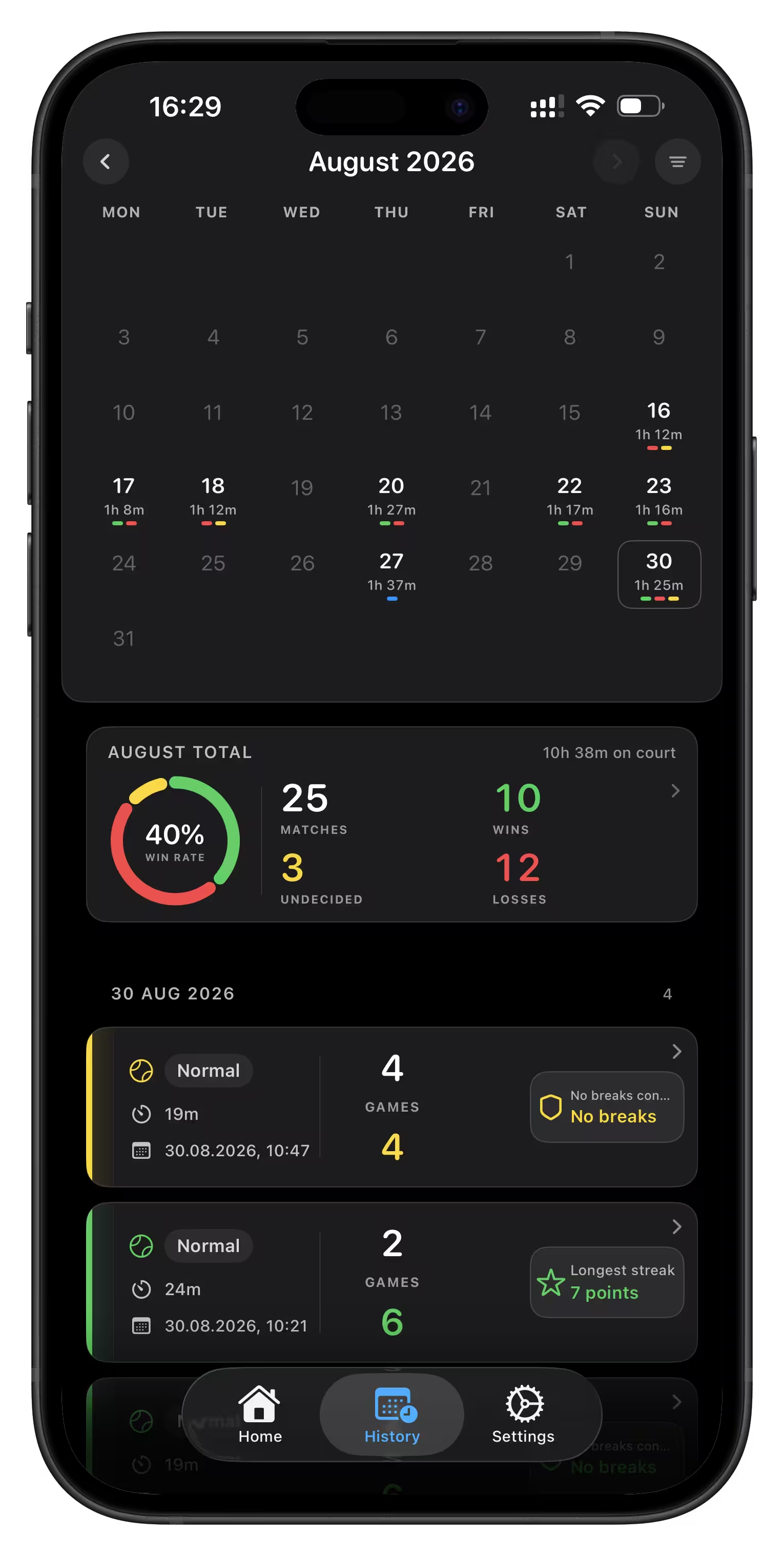
Here you can explore your entire match history — all in one place.
🗓️ Calendar
Section titled “🗓️ Calendar”- Dates with matches show time on court directly under the day number.
- Tap on a day to view matches played on that date.
- You can swipe left or right to switch months.
📃 Match List
Section titled “📃 Match List”- Below the calendar is a list of matches for the selected day.
- Each match card shows match type, duration, score, date, and time.
- Tap any match to see its details and analytics.
- The summary cards above the list can be tapped to open period analytics for that visible time range.
- When you delete a match, the app now asks for confirmation before removing it.
Swipe left on an entry in Home or History, tap Delete, then confirm. Deleting a saved match or training session removes it from VMSPadel on both iPhone and Watch and from your synced history. If a device or the network is unavailable, the deletion waits for synchronization. This cannot be undone.
🔎 Filters
Section titled “🔎 Filters”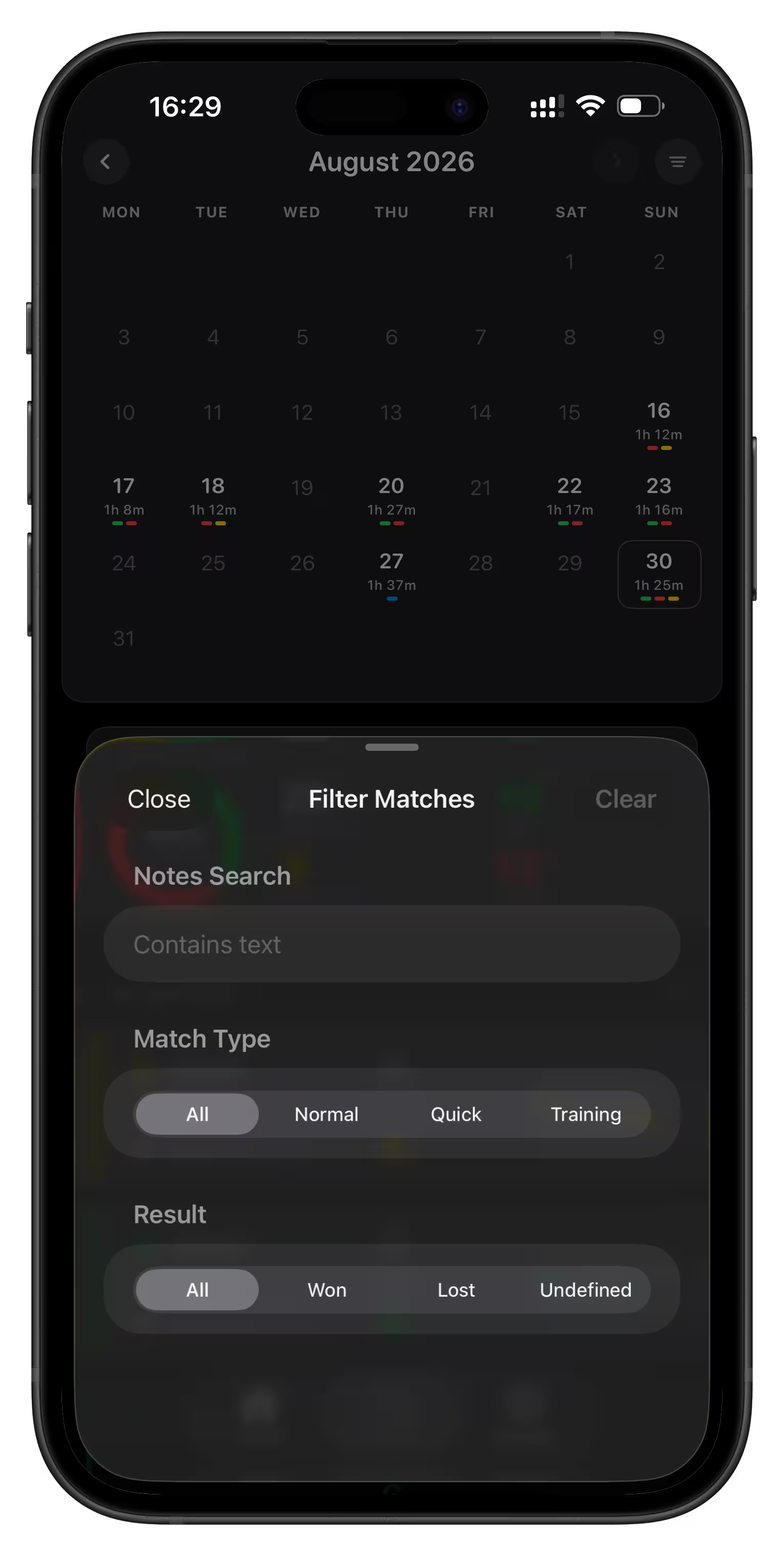
Use the filter button in the top-right corner of History to quickly narrow the list.
- Notes Search finds matches whose saved notes contain your text
- Match Type lets you show
All,Normal,Quick, orTrainingsessions - Result lets you show
All,Won,Lost, orUndefined - The filter works together with the currently selected calendar date and month view
Great for looking back on your performance and tracking how often you play.
To find training sessions, select Training and leave Result set to All. Training is excluded from Won, Lost, and Undefined results.
⚙️ Settings
Section titled “⚙️ Settings”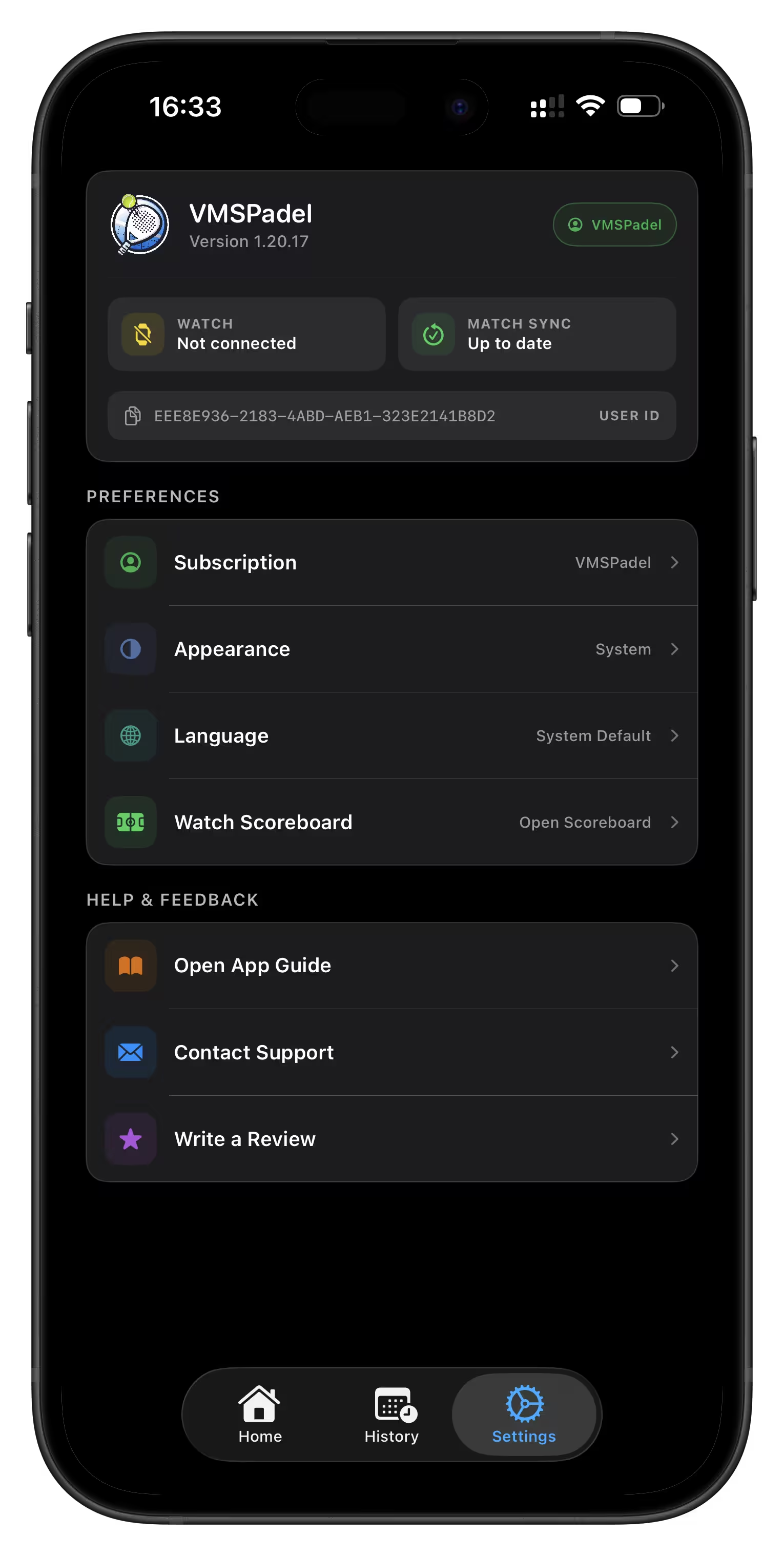
The Settings screen is split into a few simple sections for preferences, help, and app status.
🧩 Preferences
Section titled “🧩 Preferences”- Subscription opens your subscription and access options.
- Notifications appears when notification permission has not been granted and lets you manage it.
- Appearance lets you choose System, Light, or Dark for the main iPhone screens. The court-side scoreboard keeps its dark display.
- Language offers System Default, English, Español, Italiano, Deutsch, and Français. System Default follows the device language, with English as the fallback. The language preference is also sent to the paired Watch.
- Watch Scoreboard opens the full-screen court-side display while your trial or subscription is active.
The interface adapts to larger system text sizes. Labels and controls may rearrange to fit.
🆘 Help & Feedback
Section titled “🆘 Help & Feedback”- Open App Guide opens this user guide in your selected app language. In-app information links also open the corresponding translated guide section.
- Contact Support helps you reach support directly.
- Write a Review lets you leave feedback in the App Store.
🔧 App Info & Status
Section titled “🔧 App Info & Status”The card at the top of Settings shows the app version, plan, Watch connection, and Match sync status. Sync shows Up to date or the number of synced matches out of the total. Tap your User ID to copy it for support.
🟩 Scoreboard
Section titled “🟩 Scoreboard”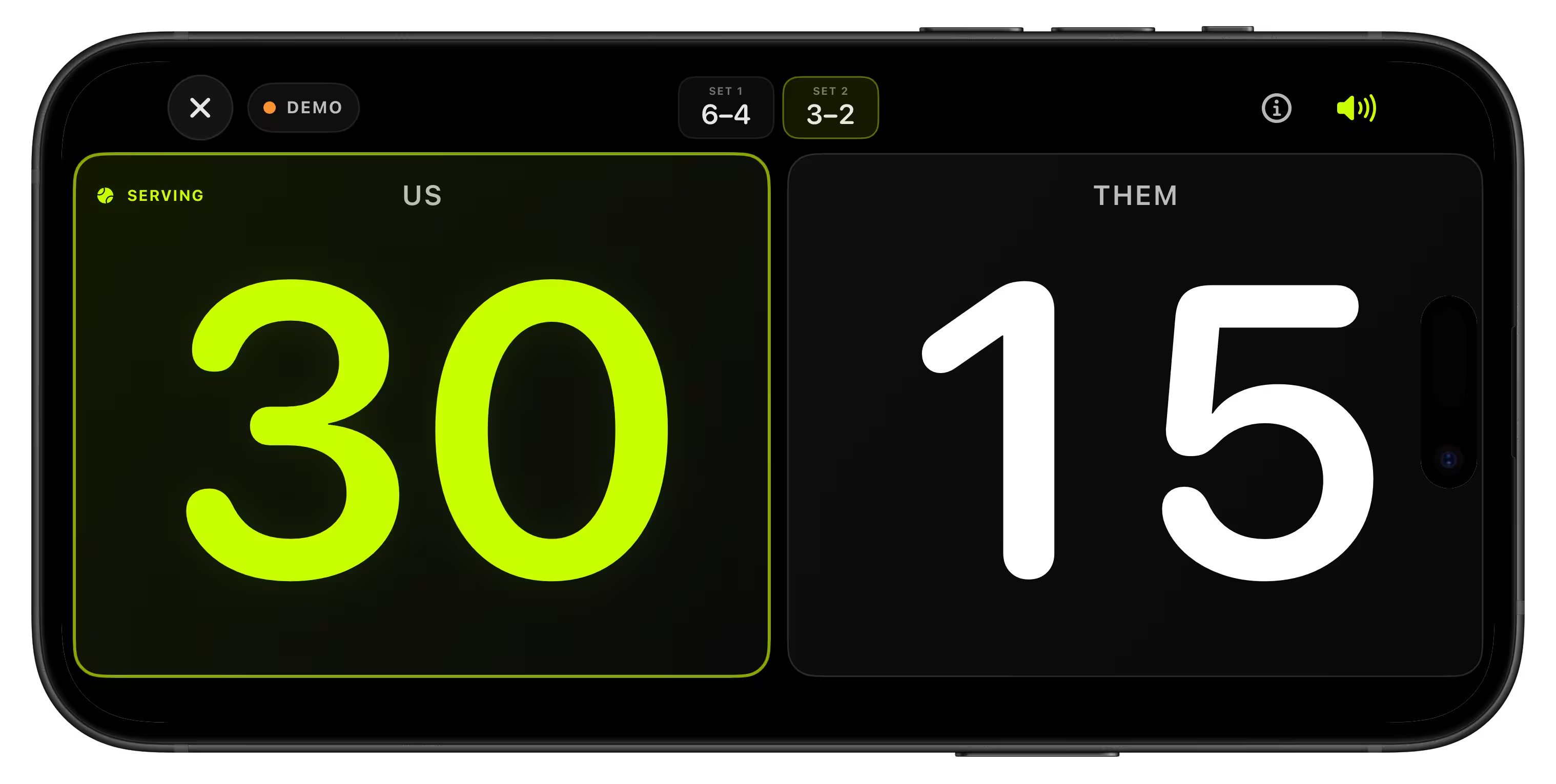
The Scoreboard turns your iPhone into a large court-side display, so everyone can follow the match without crowding around the Apple Watch.
Open it from Settings → Watch Scoreboard.
- If your Apple Watch is already counting a match, the iPhone shows the live score.
- If the iPhone receives an active Watch score while the app is open, it can automatically bring up the live scoreboard.
- If there is no active match, you’ll see a demo scoreboard so you can try the layout before playing.
⌚️ Watch-Controlled Scoring
Section titled “⌚️ Watch-Controlled Scoring”- Your Apple Watch remains the score controller.
- The iPhone scoreboard mirrors the current score from the Watch.
- Score updates, undo actions, serve changes, and match finish events are reflected on the iPhone display.
- If the Watch is not reachable from the phone, your match continues normally on the Watch.
This keeps scoring quick on your wrist while the iPhone stays visible from the side of the court.
📺 Court Display Mode
Section titled “📺 Court Display Mode”When the scoreboard is open, the iPhone is optimized for easy reading:
- The screen switches to a horizontal full-screen layout.
- Brightness is raised while the display is visible.
- Auto-lock is disabled so the score stays on screen during play.
- Brightness and auto-lock return to normal when you close the scoreboard.
The top bar shows the display state (DEMO, LIVE, FINISHED, or LAST SCORE) and a set-by-set score strip for Normal matches. Tap × to close the display. In demo mode, the info button opens the scoreboard guide.
🔊 Voice Announcements
Section titled “🔊 Voice Announcements”Use the speaker button to turn score announcements on or off for the current display.
- The setting is remembered for next time.
- Announcements follow tennis-style score order: the serving team’s score is spoken first.
- A short delay avoids announcing quick correction sequences, such as score then undo.
- Connect the iPhone to a Bluetooth speaker if you want the score announced on court.
Announcements follow the language selected in Settings → Language: English, Spanish, Italian, German, or French, with English as the fallback. There is no separate voice-language selector on the scoreboard.
🧪 Demo Mode
Section titled “🧪 Demo Mode”If there is no active Watch match, opening Settings → Watch Scoreboard shows a demo scoreboard.
- Try the horizontal layout.
- Test the voice toggle.
- See how the display looks before your next match.
👀 Related Guides
Section titled “👀 Related Guides”- Just getting started? Head to the Quick Start guide
- Want to learn how to use the Watch? See the Apple Watch App Guide
- Learning the formats? Read Padel Scoring Explained
- Got questions about accounts, syncing, or features? Visit the FAQ
📬 Need Help?
Section titled “📬 Need Help?”If something is still unclear or you need assistance, please reach out to us at [email protected].